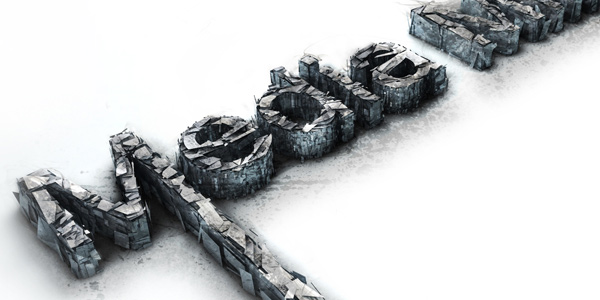
3D Text Shatter Effect – Tutorial 89

By Arno Van Waeyenberg. Posted: August 14, 2009 at 4:10 pm in Cinema 4D, Photoshop, Tutorials
I'm going to show you how to make a 3D text shatter effect. This effect is made in two programs, Cinema 4D and Photoshop.If you haven't heard of Cinema 4D before it is a relatively easy to use 3d application, it is quite similar to 3dsMax or Maya. I will go pretty in depth with the Cinema 4D part, for all the inexperienced users, so bare with me if I go too slow. Now enough chit chat, let's jump in.

Required Resources

In this tutorial we will be using some resources you will want to download before starting:

Download

(Optional) Cinema 4d material

Final Image Preview

Step 1: Creating the basic text

Open up Cinema 4D and make a text object Write “Media Militia” in the text object Now rotate your text object: 90* on the X axis and -90* on the Y axis Create an Extrude NURBS object And drop your text in it Change the object properties of the Extrude NURBS to 0 / 0 / 35 Now take your ExtrudeNURBS object and hit “C” (this makes your object editable) Open this object and select everything (Ctrl+A) then right click your object and press “Connect” You can now delete your old object that you just “Connected” Rename your object “Media Militia” Take the polygon tool and the Rectangle Selection tool, make sure to un check the “only select visible elements” box Now with the scroll button of your mouse click on your “canvas” and you will see that four different views just opened up, we will be using the top view So middle click on the top view to make that view bigger, and select the first “M” letter of Media Militia right click on it and press “Split” This creates a new object with just the “M” now delete the selection you have selected, this will delete the “M” from Media which leaves you with an “M” object and a “edia Milita” object. Rename the object you just split to “M” Now go back to your “Media Militia” object and select and split the “t”, just as we did with the “M”. Delete the “t” from your Media Militia object and rename the “t” you just split to “t” Middle click on your screen and go back to perspective view. Take the Live Selection tool and on your “M” object select the shown polygon: Right click on your screen and select “Extrude” Add 350 to the offset Go into Top View and select your “t” object, press Ctrl+A (to select all the polygons) then take your Scale Tool and scale up the X axis (or the red axis) to 220 Go back to Perspective View and select the shown polygon with the Live Selection tool Right click on your screen and select Extrude and add 1000 m in the Offset Take your Use Model tool and the Live Selection tool Make a floor Go into Right View, select your three text objects and move them right on top of your floor Now make two copies of each text object, and place each copy underneath it's original, name each object as shown below Create a Shatter Object and copy it, name one shatter object “Shatter 1” and the other one “Shatter 2” Change the strength of the “Shatter 1” object to 20 %, and the strength of the “Shatter 2” object to 10% Select both Shatter objects and copy them twice, now place a Shatter object in each copied text object (match them up according to their number as shown) Now select all of your text objects ending with either a 1 or a 2 and take the Live Selection tool And move the “green axis” up 14.3 points, so that it is on top of the original text object Go into top view, take your Polygon tool and select all your text objects ending with “1” Make sure you have no polygons selected (left click anywhere on your canvas to de-select any polygons you might have selected) Right click on your canvas and select “Knife” (make sure the visible only is checked) Now start randomly cutting from one side of your text to another, do this around 30-60 times (this will make the shattered pieces smaller) Make sure you don't leave any long polygons like the extruded M and T uncut Keep cutting until you have something like this Now do the same for the text objects ending with “2” After that go into side view and start cutting up the text objects ending with 1 and 2 just as we did earlier (make sure to un check the “Visible Only” box) Now select all your “2” text objects and scale up the green axis using the scale tool Then move it down, so that the top of the letters are slightly on top of your original text Now take all the “1” text objects and scale them up as well Then as we did before move them down, so that the top is a little higher then the original text

Step 2: Adding Light and textures to our image

Make a basic light Make three copies of it, and name them 1, 2, 3, 4 accordingly Change the Intensity of the first three light objects to 45% and change the intensity of the 4th light to 70% Now select the 2nd 3rd and 4th light objects and change the shadow to “Shadow Maps (Soft)” Now go into top view and move each light as shown below Go into side view, select all your lights and move them up a bit as shown Now we are going to make the materials for our floor and for our text Start by making a new material Double click on the material (to open the material editor) and change the color to the following Now check the boxes for Luminance, Bump, Specular, and Displacement Change the settings to the settings shown in the screen shots below (In the bump and displacement options you will have to load in the metal texture image) Now close the material editor, and drop the material onto the floor This next part isn't necessary but it gives your text a nice touch, it does take longer to render though. We are going to load our downloaded material and place it on all of our text objects Go into the render settings, and change the Output to the following Then we are going to put on Global Illumination and Ambient Occlusion (just click the check box on the top, leave all the other settings on default) Before we render our scene we are going to set our perspective view on a nice angle, I put my picture on this angle Now hit the render button This can take quite a while, depending on how strong your computer is, but after that we are done with Cinema 4d and we will go play in photoshop :) Once it is finished rendering save it as a jpg format, and 300 dpi (dots per inch)

Step 3: Editing the picture in photoshop

Open your image in photoshop Double click your layer and name it “Base” Make a new layer under your base layer and fill it with white Now add a white mask to your “Base” and with a large soft black brush (bring the opacity of your brush down to 50%) start masking out the colored edges Now import your metal texture and resize it so that I covers the entire media militia text, desaturate the texture and change the blending mode to overlay. Take your eraser tool and delete any harsh exteriors Take your base layer and go to Image>Adjustment>Curves and change the settings to something like the following Now import your ink texture, rasterize it, and name it Ink. Make sure you place it underneath the metal texture Change the blending mode to multiply Add a mask to the layer and get rid of all the dark areas surrounding the actual ink Now duplicate this layer and hide the original, rotate and move your copy so that it is on top of the text, then with a very soft brush mask out the parts that stick out from the text. Then after that change the transparency to 5%-50% (change it around so that you get a random look) and with a small brush start brushing the edges of the ink that is on top of your text Duplicate your original ink texture and cover another part of the text and repeat the same process as with the other ink texture. Do this until all your text is covered with ink textures. Now select all your ink layers and add them to a group, name the group Ink. Change the opacity of your ink group to 40% Now make a new layer, name it Shadow, and with a black color and a soft, big brush add a line around the text as shown: Add a Gaussian Blur, 17 px, and bring down the opacity to 30 percent. Now delete any parts of the shadow that you don't like with a big soft brush And we are pretty much finished If you want to go even further you can take the dodge and burn tools and make some highlights on your Base layer I hope this tutorial was of some help :) Cheers!

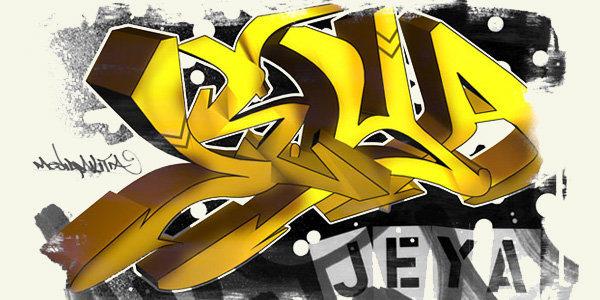
3D Graffiti Piece 20

By jeya. Posted: June 26, 2009 at 3:51 pm in Cinema 4D, Photoshop, Tutorials
In this tutorial you will learn how to use Cinema 4D and Photoshop CS4 to make some graffiti letters. We will extrude the letters and tweak them out. After the baseline render is done we will import it into Photoshop and add some outer strokes and grime.

Download

Step 1

To create a cool 3D Graffiti render, we are going to start inside of Cinema 4D. Open Cinema 4D and click on Objects > Create Spline > Bezier. Then switch to the top view port by chossing Cameras > Front

Note: We used version 10. Your version might differ but you should be able to do that same thing...

Step 2

Start off by drawing letters that resemble a graffiti piece. You can get some inspiration from the following sites: Art crimes or asddas. You will want to keep the whole bezier segment together and closed by doing one letter at a time. In my example I created the letter J.

Step 3

At This step, to see what it will look like in 3D, go to Objects > Nurbs > Extrude Nurbs. Make spline a child of Extrude Nurbs by dragging spline on to Extrude Nurbs until a down arrow appears.

Step 4

At this point switch to perspective view (Cameras > Perspective) to get a better view of the final piece. Click on Extrude Nurbs and change the Object Properties - Movement to the following -19m, 0m, 73m. Then use the buttons in the top right of the viewport to move around till you are satisfied with the look.

Step 5

Switch back to the Front View. Continue the process of making letters and adding an Extrude Nurbs object to them. Remember to keep switching to Perspective to see how it is turning out. Once you complete the other letters you should have something similar to the image below: Tip #1) If you need to knock a hole out of your letter (i.e. a lower case "e") select both the spines and choose Function Combine.

Step 6

Now it's time to make it a little bit more funky. Add some bend modifiers and make them children of the Spline letters. Use the object properties to bend them the way you like. I didn't add it to every letter just some. I also used the move and rotate tool to add some more depth to the letters.

Step 7

In the Materials area, choose File > New Materiall (or double click in the blank area). Reference the below images for the settings:

Step 8

Now you need to add the material you just created to each letter.

Step 9

To get some really cool effects, select all your letters and then right click on one of them and choose Group Objects. Add a Twist Deformation to all the layers Objects > Deformation > Twist). I added a light to the scene as well to make it have more of a glow. Make sure your stack looks somewhat like the image below with the correct children and parent setup.

Step 10

Now we can export the render. On the main menu go to Render > Render Settings. Click on Save and change the settings to the following:

Step 11

Make sure your camera is on perspective view and it looks the way you like it. Once it is, choose Render > Render to Picture Viewer. Then choose File > Save Picture As. Verify the settings and choose OK.

Step 12

Open you exported render into Photoshop. On the menu bar choose Select > Load Selection. Verify the Alpha 1 Channel is selected and click OK.

Step 13

Create a new layer for you selection by going to Layer > New > Layer Via Cut. Name this new layer "Graffiti Render". Double click on the layer, Graffiti Render and make a stroke of 8px - White. Finally, fill the Background layer Black.

Step 14

We are going to use the Pen tool to make every letter pop with a stroke. Grab the pen tool with the Paths option selected. Trace the first letter. Then create a new layer and on the paths pallett choose Load Path as Selection. Then go to Edit > Stroke. Choose a 3px Width with the color set to black. Location should be set to outside. Then click on OK.

Step 15

Repeat Step 14 for your other letters. Each on a separate layer. Erase the parts of the stroke that you don't like. You should now have something like this:

Step 16

Now to add some color to this piece. Create a new layer called color. Then CTRL (CMD) click on the Graffiti Render and click on the Add Layer Mask Icon on the bottom of the layers pallet. This will restrain our coloring to only the Graffiti Render. Change the Layer Blending Options to Overlay, I choose a really soft brush and painted on different colors that I wanted it to look like.

Step 17

Create a layer called "Bling" and set the layer blending to "Overlay". Grab the line tool and set it to Fill Pixels -10px. Then create lines at different areas or your letters. Do it on about 50% of the layers or to your liking.

Step 13

Open the Water Color Image from the Water Colors Pack and scale it down to fit your document. Change the Layer Blending Mode to Screen. Then De saturate that Layer by Pressing CTRL + Shift + U.

Step 13

Now Open up the Levels and drag the left slider over You should end up with something like this:

Step 13

Open up this image from our Spray Paint and Drips Pack. Change the Layer Blending to Screen. Inverse the layer by going to Image > Adjustments > Invert. Put this layer right above the Background layer in the layers pallet by dragging it downwards.

Step 13

Move the layers around to your liking. I duplicated the layer again (Layer > Duplicate) and moved it around.

Step 13

I added some misc. images from our packs. Stencils, Hand Drawings, and Spray Paint are great for this. As always, you can download this PSD file for free. Hope you enjoyed this tutorial.....